Sell in multiple currencies
Last modified:
To sell in multiple currencies, you need a currency switcher plugin. This guide walks you through how to get started with selling in SEK and EUR using Nexi Checkout for WooCommerce. Throughout the guide, the example assumes that you are a Sweden-based store that also wants to sell to customers in Germany.
This guide uses FOX – Currency Switcher Professional for WooCommerce (free), which supports two currencies – ideal for SEK and EUR. You can add more currencies in the Premium version.
Another common option is Aelia Currency Switcher.
This guide will show you how to:
- Configure FOX Currency Switcher Professional for SEK and EUR
- Enable Nexi Checkout for WooCommerce and ensure payments work in multiple currencies
FOX Currency Switcher Professional
1. Requirements
You will need:
- WooCommerce
- FOX Currency Switcher Professional – read more here
- WooCommerce BACS setup (for testing payments)
- Nexi Checkout for WooCommerce (added later)
- Nexi accounts enabled for both SEK and EUR
2. Enable Direct Bank Transfer (BACS)
Start by verifying that currency switching works before enabling Nexi Checkout.
Activate Direct Bank Transfer (BACS) in WooCommerce and confirm that currency switching works correctly. Once this is verified, you can enable the Nexi Checkout plugin. This approach makes troubleshooting easier.
Navigate to WooCommerce → Settings → Payments → Take offline payments and set up Direct bank transfer.


3. Install FOX Currency Switcher Professional
- Navigate to Plugins → Add New
- Search for “FOX Currency Switcher Professional”
- Install and activate the plugin
The free version supports a maximum of two currencies – perfect for SEK and EUR. The paid Premium version enables you to add additional currencies.

4. Currency settings
4.1 Select selling countries and default currency
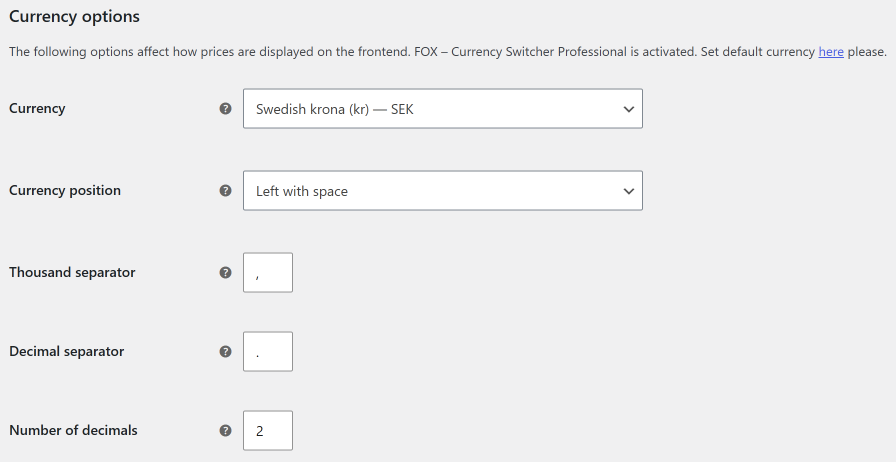
In this example, the store sells to both Sweden and Germany.
WooCommerce only supports one default currency, which in this case is SEK.
You set this under WooCommerce → Settings → General and scroll down to Currency options.
4.2 Add SEK and EUR in FOX
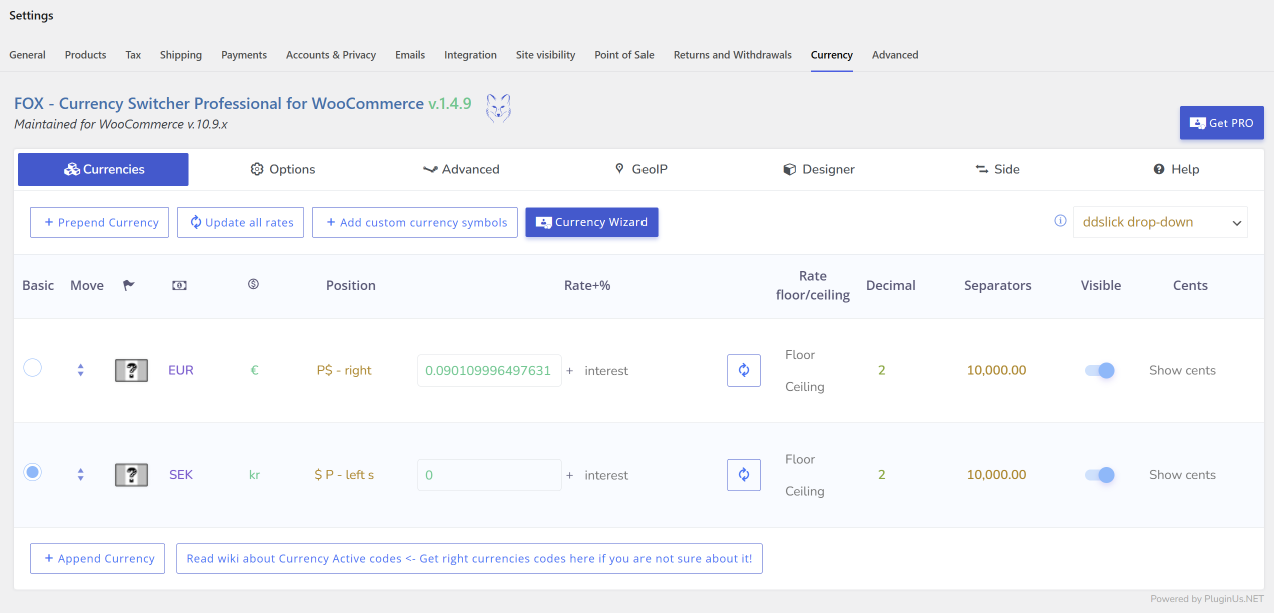
Add both currencies in the FOX Currency Switcher settings and ensure they are enabled.
5. Display the currency switcher in the store
- Navigate to the plugin’s display settings
- Enable the side currency switcher or your preferred widget
- Save the settings
Your customers can now switch currencies in the store.

6. Test FOX with WooCommerce BACS
Perform test purchases in both SEK and EUR to confirm that currency switching works properly.
7. Enable GeoIP (optional)
FOX can automatically select a currency based on the visitor’s location using GeoIP.
8. Install and activate Nexi Checkout for WooCommerce
Set up Nexi Checkout for test purchases by following this documentation.
9. Confirm that Nexi is available for Sweden and Germany
Make sure your Nexi agreements include the countries and currencies you want to sell in.
Get in touch with Nexi to verify that your Nexi agreement permits sales to your intended countries and currencies.
10. Test Nexi in SEK and EUR
Perform test purchases in both SEK and EUR with Nexi as your payment method to confirm that currency switching works properly for Nexi Checkout.