Customer withdrawal form
Last modified:
Customers register a withdrawal in one of two places:
- From their My Account order view – logged-in customers see the withdrawal form directly under their completed order. This is added when the plugin is activated, no additional configuration is required.
- From a public page using the
[rwwc_withdrawal_form]shortcode or the Withdrawal Form block – useful for guest checkouts where the customer does not have an account, or are not logged in.
Both entry points use the same withdrawal flow.
Set up the public withdrawal page
- Create a new WordPress page (for example Withdraw).
- Add the Withdrawal Form block or the
[rwwc_withdrawal_form]shortcode - Publish the page and link to it from your store’s menu, order confirmation email, and/or customer service page.
The shortcode renders an order lookup form. The customer enters their order number and email address, and is then taken to the withdrawal flow for that order.
Customising the lookup description
You can change the text shown above the lookup form by passing a description attribute:
[rwwc_withdrawal_form description="Enter your order number and the email used at checkout to start a withdrawal."]The withdrawal flow
When an order is eligible for a withdrawal, the customer is guided through the flow.
Finding the order is a quick first stop – the withdrawal itself then takes just two steps: selecting the items to withdraw, and confirming the request.
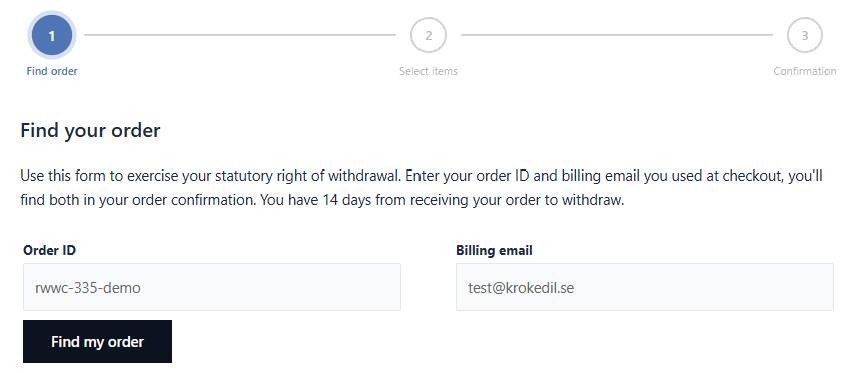
Step 1 – Find order
The customer find their order by entering their order number and email.
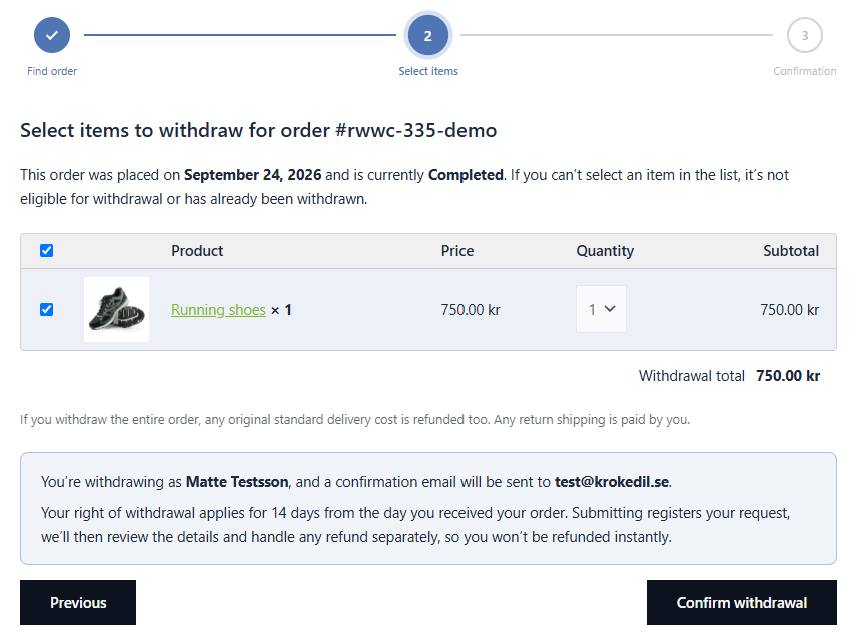
Step 2 – Select items to withdraw
In the order overview the customer selects the item(s) they want to withdraw and chooses the quantity for each line.
Products excluded by setting or tag are not listed. See Excluding products.
Title, body text and button label are configurable under WooCommerce → Settings → Returns and Withdrawals → Customer withdrawal form.
The customer completes the withdrawal by clicking the Confirm withdrawal button.
Step 3 – Confirmation
The customer receives a confirmation of the withdrawal with the date and time.
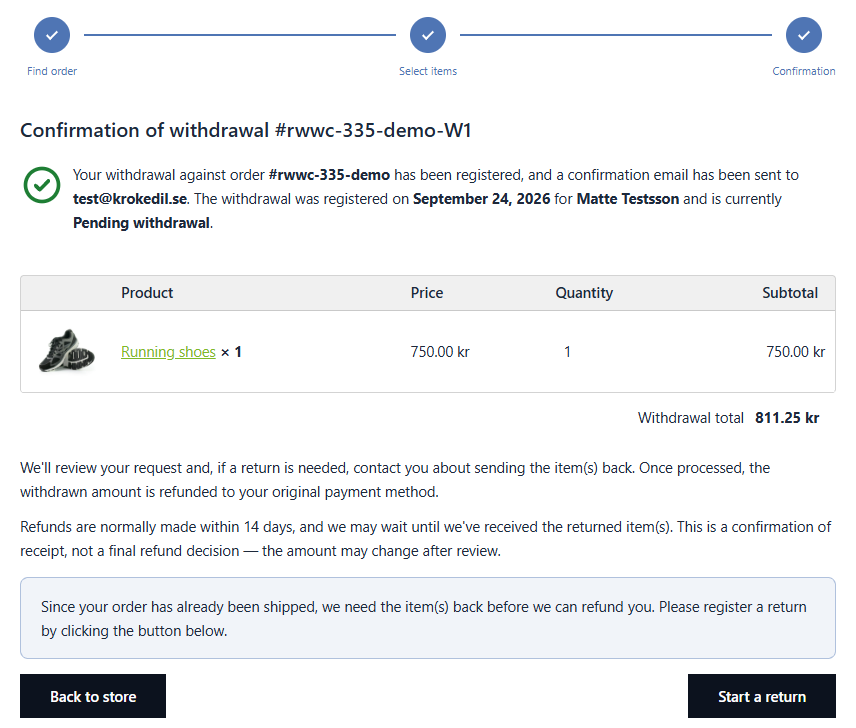
What happens on confirm
- A new withdrawal order (
shop_order_withdraw) is created and linked to the parent order. - The parent order is moved to Pending withdrawal status.
- The customer sees a confirmation message and receives an email (
Withdrawal registration (customer)). - The shop manager receives an admin notification email (
Withdrawal registration (admin)).
The post-confirmation message and email content can be customised — see Withdrawal form text and placeholders.
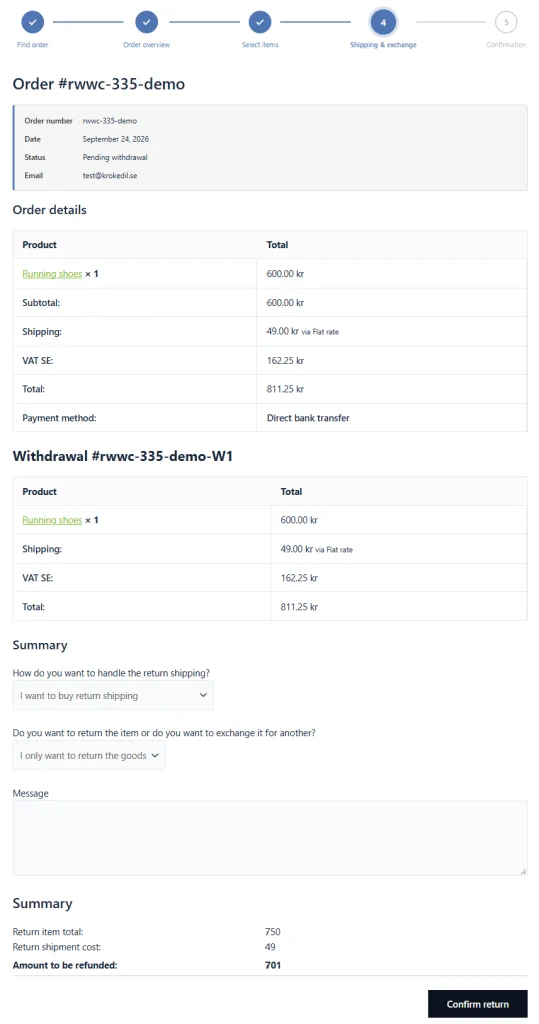
Step 4 – Start a return
After the withdrawal confirmation, the customer has the option to also Start a return directly.
The customer is then guided directly to Step 4 – Shipping & exchange of the Return flow.
Eligibility rules
A withdrawal cannot be created when:
- The order is already withdrawn.
- The configured Withdrawal limit (in days) has passed since the order was created.
- The product is excluded from withdrawals.