Processing withdrawals
Last modified:
Once a customer registers a withdrawal, the original order moves to Pending withdrawal status and a linked withdrawal order is created. From here, the merchant inspects, edits and finalises the withdrawal from the WooCommerce admin.
The Withdrawal order
Each withdrawal is stored as a separate order with the type shop_order_withdraw.
The withdrawal order:
- Inherits its number from the parent order, optionally with the configured prefix and a sequence:
{original_order_number}{prefix}{withdrawal_number}. - Lists the items the customer selected, including quantities.
You can open a withdrawal order from the parent order’s Withdrawals metabox or by browsing the Withdrawal Orders list.
The Withdrawal button on the parent order
A Withdrawal button is shown next to the WooCommerce Refund button on any order that isn’t already fully withdrawn
This lets a merchant start a withdrawal on the customer’s behalf – useful for withdrawals reported by phone or email. The flow is the same as the customer-facing one and produces the same withdrawal order.

Completing a withdrawal
There are different ways to approve and finalise a withdrawal.
Finalise a withdrawal from the Withdrawal Orders tab:
- Open the WooCommerce → Withdrawal Orders tab.
- Click the Complete order Action.

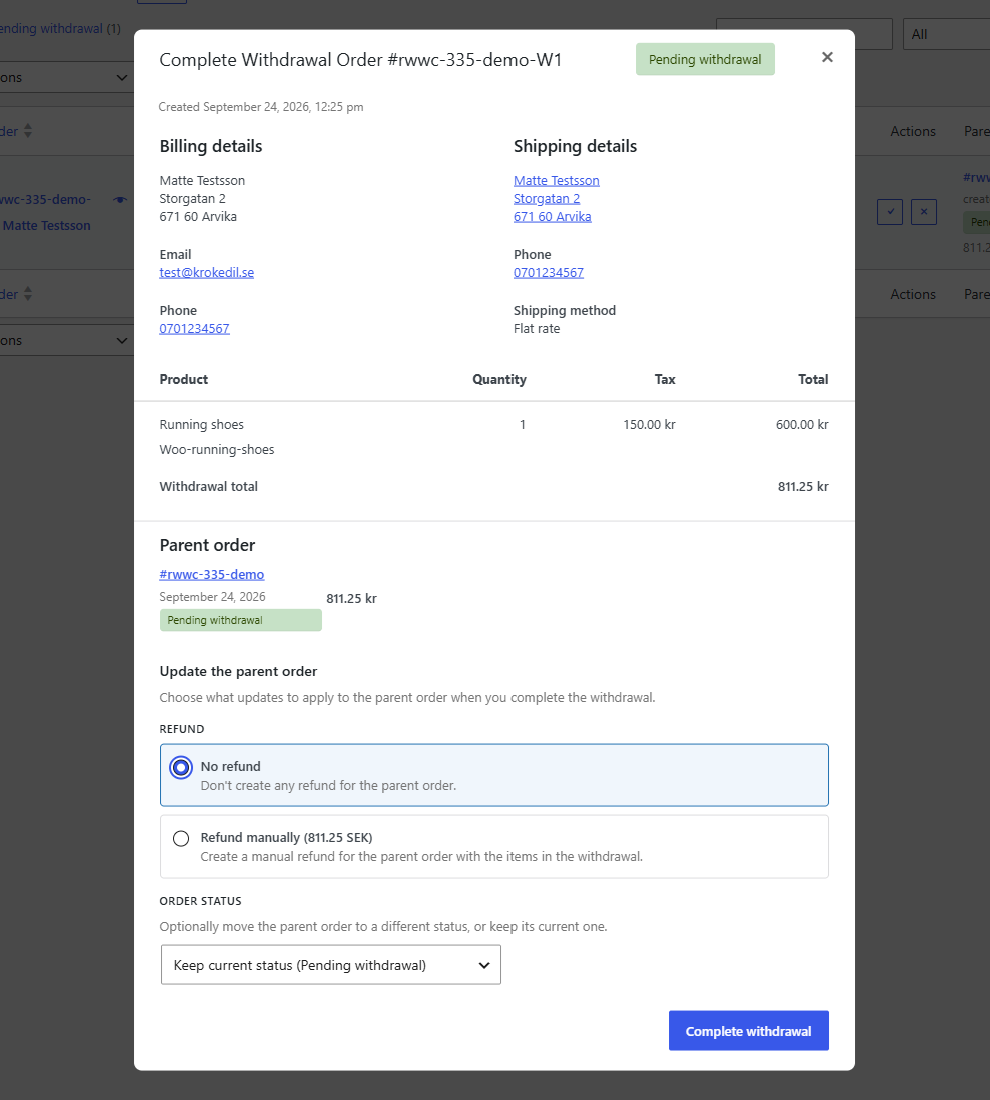
Update the parent order
Choose what updates to apply to the parent order when you complete the withdrawal.
- No refund – Select this option to not create any refund for the parent order.
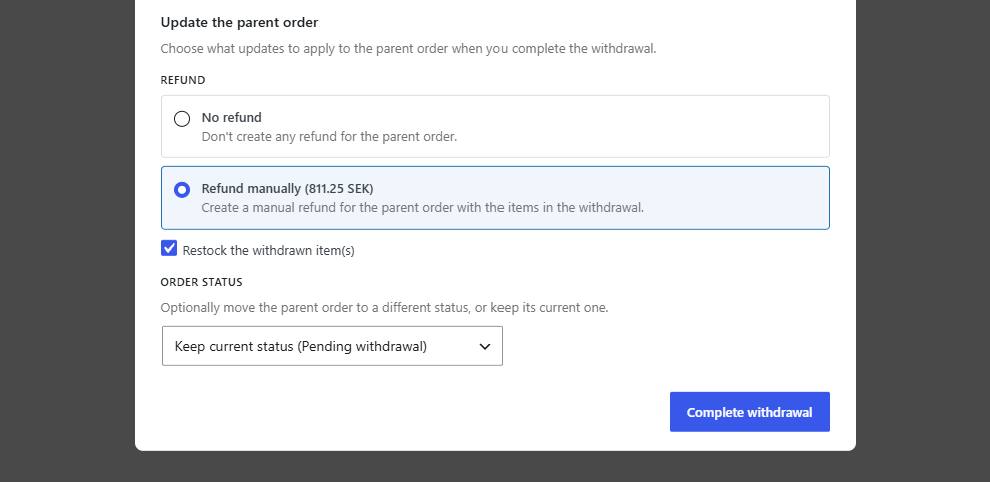
- Refund manually – Select this option to create a manual refund for the parent order with the items in the withdrawal.
- Restock the withdrawn item(s) – Check this box to restock the withdrawn item(s). This option is only available when Refund manually is selected above.
- Order status – Optionally move the parent order to a different status, or keep its current one. This overrides the main Completed withdrawal order status setting.
- Click Complete withdrawal to finalize.
Finalise a withdrawal from the parent order:
- Open the parent Pending withdrawal order.
- Scroll down to the Withdrawals metabox and click Complete.

Update the parent order
Choose what updates to apply to the parent order when you complete the withdrawal.
- No refund – Select this option to not create any refund for the parent order.
- Refund manually – Select this option to create a manual refund for the parent order with the items in the withdrawal.
- Restock the withdrawn item(s) – Check this box to restock the withdrawn item(s). This option is only available when Refund manually is selected above.
- Order status – Optionally move the parent order to a different status, or keep its current one. This overrides the main Completed withdrawal order status setting.
- Click Complete withdrawal to finalize.
When the withdrawal is completed:
- If payment has been made, a refund is created on the parent order for the refunded amount.
- The Withdrawn column on the parent order updates to show how many of each line item have been withdrawn.
- The parent order’s status is updated according to the Completed withdrawal order status setting. If set to Do not change order status, the parent order is left as it is.

Email notifications
Two emails ship with the plugin:
- Withdrawal registration (customer) – sent to the customer when a withdrawal is registered.
- Withdrawal registration (admin) – sent to the shop manager when a withdrawal is registered.
Both can be enabled, disabled and styled under WooCommerce → Settings → Emails, like any other WooCommerce email.
Their content uses the same placeholders as the post-confirmation text – see Withdrawal form text and placeholders.