Install and activate
Last modified:
This guide will help you set up Kustom Checkout for WooCommerce, from installation to your first successful test purchase.
Follow the steps below to connect your Kustom account, configure required WooCommerce settings, and verify that orders are processed correctly in both WooCommerce and Kustom Merchant Portal.
Please note that any mentions of Staging, Test and Live in this guide refer to the settings in the Kustom Checkout plugin. These should not be confused with the WooCommerce Site Visibility settings, which add a Live (or Coming soon) label in the admin interface.
Getting started with Kustom Checkout for WooCommerce
Step 1 – Required WordPress/WooCommerce settings
Before testing Kustom, make sure your store is properly configured:
HTTPS
Your site must use an SSL/TLS certificate (https://) for Kustom Checkout for WooCommerce to work.
Permalinks
Set to Pretty permalinks under WordPress Settings → Permalinks.
Otherwise callbacks from Kustom back to your store won’t work and orders will not be updated with the correct order status/information.
Read more about pretty permalinks.
Terms and conditions
First, make sure you have created and published a Terms and Conditions page.
Next, assign this page in WooCommerce:
Navigate to WooCommerce → Settings → Advanced, then locate the Page setup section and ensure that your Terms and Conditions page is selected.
Decimals
To get the order total to match between WooCommerce and Kustom, you need to configure WooCommerce to display prices with 2 decimals.
Navigate to WooCommerce → Settings and scroll down to Currency options under the General tab to set the Number of decimals.
More information about how prices are displayed and how it can cause rounding issues can be found in this article.
Currency
You need an agreement with Kustom for each country you wish to sell to, and your store needs to be able to process purchases in the local currency.
In this guide, we assume that you are selling within your own country and using your local currency.
Kustom has a guide on How to add new markets and payment methods in their knowledge hub.
They also have a Selling to multiple countries section in their documentation.
If you sell in multiple countries, you may need a multi-currency plugin – this can be added later.
Step 2 – Install Kustom Checkout for WooCommerce
If you haven’t already installed the Kustom Checkout for WooCommerce plugin, you can do so in one of the following ways:
- From your WordPress Admin:
Navigate to Plugins → Add New → Search for “Kustom Checkout for WooCommerce” → Install → Activate - From WordPress.org:
Download the plugin as a .zip file from WordPress.org, then upload and activate it from your WordPress admin panel.
You can also download the .zip directly through this link.
Step 3 – Kustom account setup
You’ll need a Kustom account to connect WooCommerce to Kustom.
There are two different Kustom environments – Test (Playground) and Live (Production).
Test and Live accounts are separate. Each uses its own login portal, and you’ll need separate credentials for each.
If you already have a Kustom account for your intended purpose (Test or Live):
Continue to step 4.
Otherwise, choose the environment you want to start with and create the corresponding account:
- Test account (Playground) – for setup and testing
→ Create one here: Kustom Portal – Playground onboarding - Live account (Production) – for real transactions
→ Apply for one here: Kustom Portal – Merchant onboarding
All account-related questions – such as merchant approval, region setup, or contract details – should be directed to Kustom merchant support.
Step 4 – Log in to your Kustom Merchant Portal
Now decide which Kustom environment you’ll connect WooCommerce to.
- Test mode (Playground):
Use this to verify checkout, order flow, and payment capture before going live.
→ Log in at https://portal.playground.kustom.co/ - Live mode (Production):
Switch to this once your store is ready for real customers.
→ Log in at https://portal.kustom.co
You’ll use the corresponding API credentials from the (Test or Live) Merchant Portal in the next step.
It’s recommended to start in Test mode until you’ve verified your setup and checkout flow.
Step 5 – Retrieve your API credentials
When you are logged in to your Kustom Merchant Portal, you can retrieve your API credentials.
- Navigate to Developers → API.
- Click Generate new (or use existing ones if already created).
- Copy your:
- Key ID (called API Username in the plugin)
- Password (called API Password in the plugin)
These are the credentials you will enter in WooCommerce. They should not be confused with your Merchant ID (MID) which can be used in other interactions with Kustom. They are also different from your Kustom Portal account username and password.
Step 6 – Enable Kustom Checkout
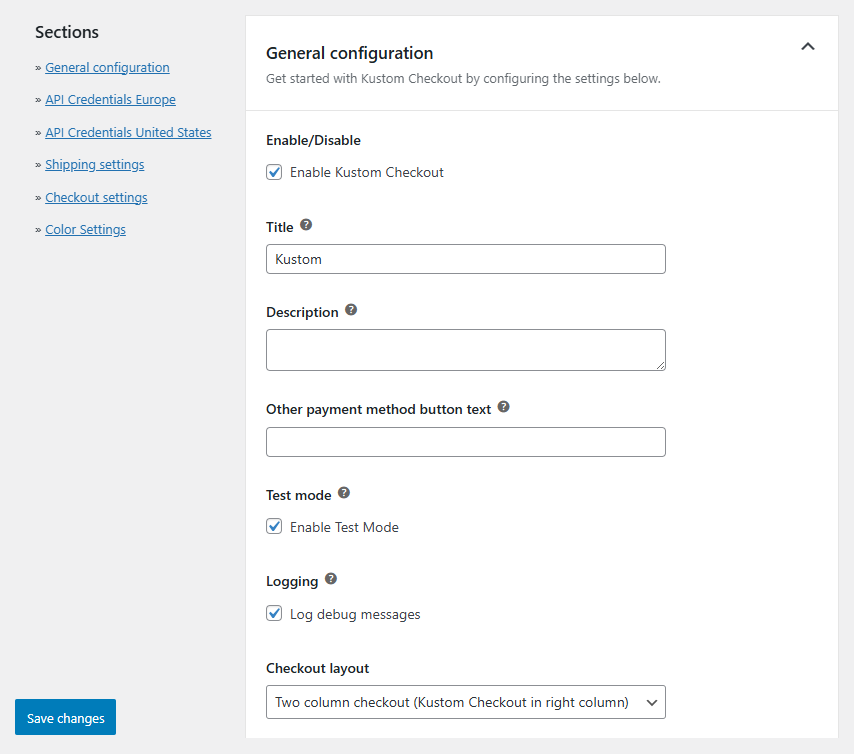
Navigate to WooCommerce → Settings → Payments → Kustom Checkout → Manage
Under the General configuration section, you check the following boxes:
- Enable Kustom Checkout
- Enable Test Mode
This setting is optional but should be enabled if you are following this guide to perform a test purchase. - Log debug messages
This setting is optional but recommended. If you encounter any issues and need to contact support, logs are required for troubleshooting.
- Move on to the next settings section to add credentials.
Step 7 – Add API credentials in WooCommerce
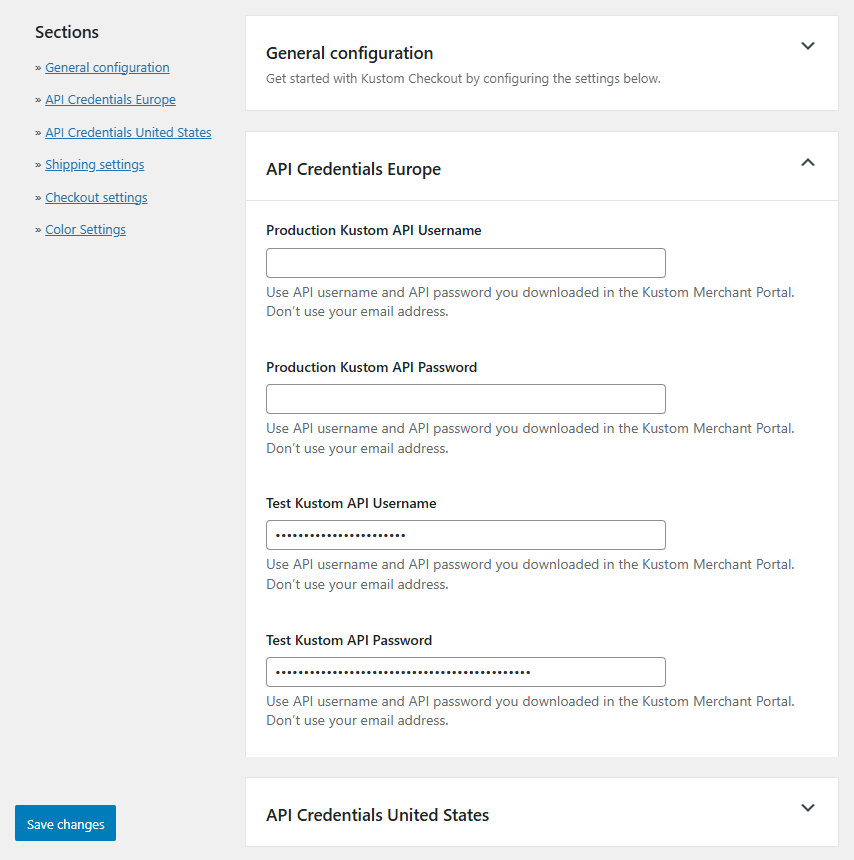
Enter your credentials in the matching API Credentials section – Europe or United States – depending on your store’s base location and the countries you sell to. This will enable Kustom Checkout as an available payment method for the selected region.
Note that you need an agreement with Kustom for each region enabled.
- Enter the Test Kustom API Username (Key ID) and Test Kustom API Password fetched in step 5.
- Click Save changes.
Step 8 – Configure shipping
If you only sell digital or downloadable products, you don’t need to configure shipping and can skip to step 9.
If you sell physical products, you must configure at least one shipping method.
Navigate to WooCommerce → Settings → Shipping and add at least one valid shipping zone and method.
Make sure it’s active and available during checkout.
You can read more about how to set up shipping in the official WooCommerce documentation.
Step 9 – Test the checkout
Perform a test purchase in your store.
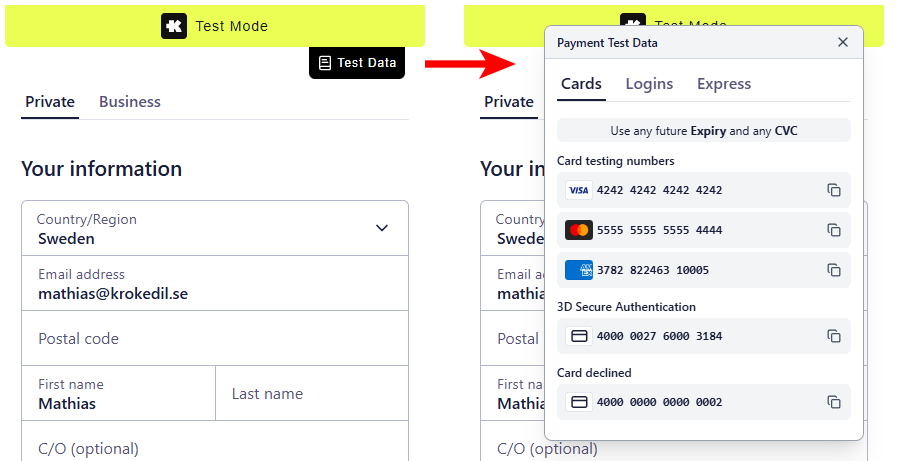
- Test/Playground mode: You can use Kustom’s sample customer data for testing.
In the Kustom Checkout, there is also a Test Data tab where you can access Payment Test Data.
- Live/Production mode: You must use real customer data.
- Ensure the checkout loads properly, that payments go through and that you are redirected to the thank-you page.
If anything goes wrong, check the Kustom logs (which you activated in step 6) under WooCommerce → Status → Logs.
You can get help interpreting the logs in the Troubleshooting the checkout flow section of this documentation.
Step 10 – Verify orders in Kustom Merchant Portal
After a successful test order, log in to your Kustom Merchant Portal and confirm:
- The order is visible and the amount matches WooCommerce.
- Order status aligns correctly:
- Processing (WooCommerce) = Authorized (Kustom)
- Completed (WooCommerce) = Captured (Kustom)
✅ Everything matches? You have successfully set up Kustom Checkout in your store!
Remember to set up your store for Live (Production) if you have completed this guide using Test mode.
Begin again from step 3 and make the necessary changes to switch your store to the Live environment.
If anything went wrong or it didn’t match, refer to the Troubleshooting section or contact Krokedil Support:
English: use the support form on krokedil.com to get help.
Svenska: använd supportformuläret på krokedil.se för att få hjälp.
Helpful information before you contact us can be found in the How to prepare a support ticket article.
Please note that all questions about a specific purchase or account-related issues should be directed to Kustom merchant support.
Krokedil only answers technical questions or questions regarding the configuration.