Order Management
Last modified:
When an order is created in WooCommerce and a reservation number exists in Qliro’s system, you have the possibility to handle the order in Qliro directly from WooCommerce. This way you can save time and don’t have to work in both systems simultaneously.
Qliro for WooCommerce doesn’t have a turn on/off setting for Order Management like other plugins can have.
If you don’t want to use Order Management you use the status None where applicable.
Please note that the Order statuses below are example statuses. If you have made changes to the statuses in the Order Management settings you need to take this into consideration.
Activate an order
This section explains how you activate an order and do a full capture.
In Qliro, you also have the possibility to do a partial capture. Read more about partial captures below.
- The WooCommerce order status needs to be set as Processing.
- Go to the order edit screen by navigating to WooCommerce → Orders and click on the order you want to edit.
- In the Order details box there is a selectbox named Status. Change the status to Completed.

- Click the Update button located at the top right on the screen.

- If everything was successful, a new order note saying Order status changed from Processing to Completed is created.
This is followed by another two order notes:- The order has been requested to be captured with Qliro and is in process. Payment transaction id: XXXXXXX Order status changed from Completed to On hold.
- The order has been successfully captured by Qliro. Order status changed from On hold to Completed.
Cancel an order
- The WooCommerce order status needs to be set as Processing.
- Go to the order edit screen by navigating to WooCommerce → Orders and click on the order you want to edit.
- In the Order details box there is a selectbox named Status. Change the status to Cancelled.

- Click the Update button located at the top right on the screen.
- If everything was successful, a new order note saying Order status changed from Processing to Cancelled is created.
This is followed by another two order notes:- The order has been requested to be cancelled with Qliro and is in process. Payment transaction id: XXXXXXX
- The order has been successfully cancelled by Qliro.
Refund an order
- The WooCommerce order status needs to be set as Completed.
- Go to the order edit screen by navigating to WooCommerce → Orders and click on the order you want to edit.
- In the Order items box, press the Refund button.

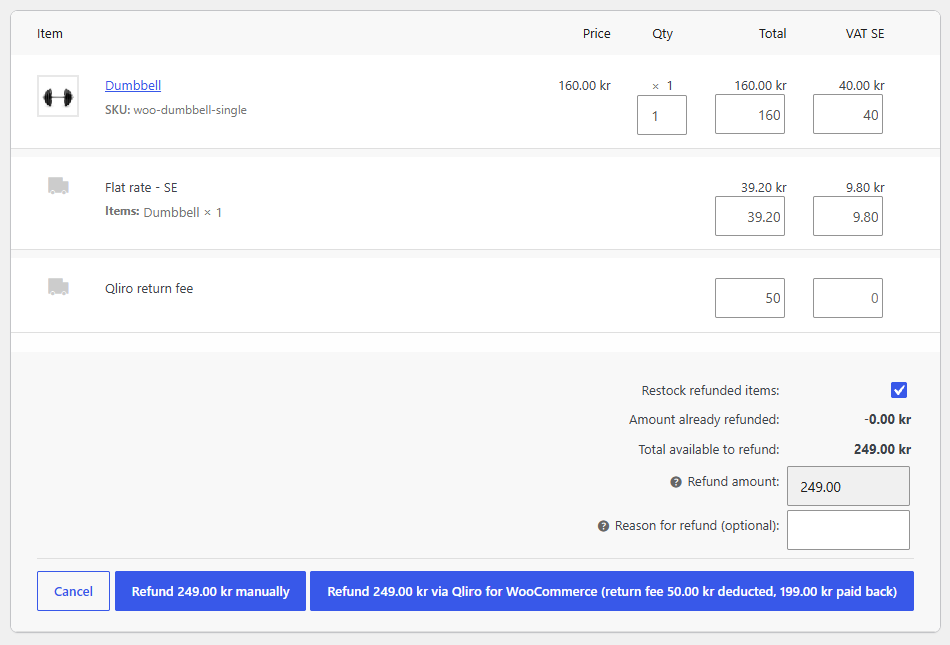
- Here you can choose to refund the full sum for an item (1) or shipping (2). It is also possible to add a return fee (3).
With shipping (2) you need to enter the amount manually, as well as the tax. Not to be confused with the Refund manually button.

- Click the Refund via Qliro button.
If you have added a return fee, the button shows the fee and the amount paid back to the customer, for example (return fee 50,00 kr deducted, 550,00 kr paid back).
- In the Order notes you will see a note stating Processing a refund of X with Qliro. If a return fee was applied, the note also states the fee and the amount paid back to the customer.
If everything was successful you will also see the following two order notes:- Order status changed from Completed to Refunded.
- The order has been successfully refunded by Qliro.
Partial refunds
Qliro’s system doesn’t support partial refunds by default. However, by enabling the Calculate return fee setting (under the Order Management settings), this can be achieved by applying a return fee that matches the amount not being refunded.

For example, if a customer buys a pair of shoes for 600 SEK (incl. tax) and requests a refund of 100 SEK (incl. tax), a return fee of 500 SEK (incl. tax) is applied.
In practice, the full order line of 600 SEK is refunded in Qliro and a return fee of 500 SEK is deducted. The customer is paid back 100 SEK – the amount you entered in WooCommerce.
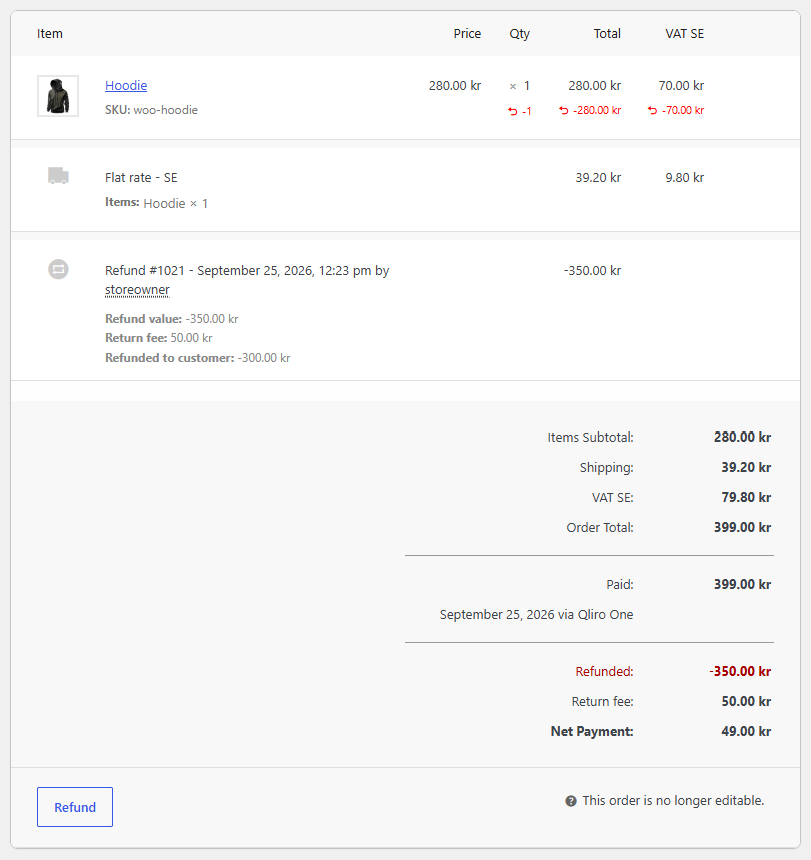
In the Order notes you will see Processing a refund of 600,00 kr with Qliro. Return fee 500,00 kr deducted, 100,00 kr paid back to the customer.
If everything is successful, a new order note saying The order has been successfully refunded by Qliro. is created.
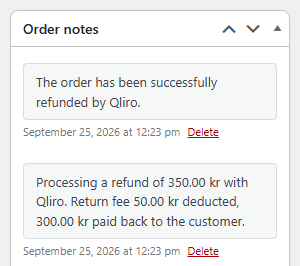
Please note that if the Calculate return fee setting is not enabled, partial refunds are not possible.
How the return fee is displayed
When a refund includes a return fee, it is shown in three places:
- Under the refund line in the order admin, with a breakdown of Refund value, Return fee and Refunded to customer.
- In the order totals, where a Return fee row shows the total return fee for all refunds on the order.
- To the customer, in the refund email and on the order in My Account, as Return fee X deducted, Y paid back to you.
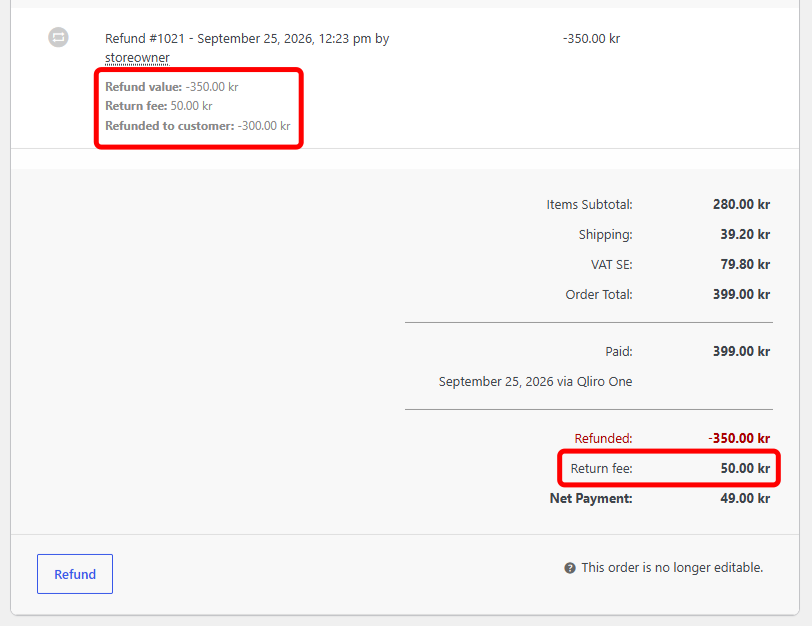
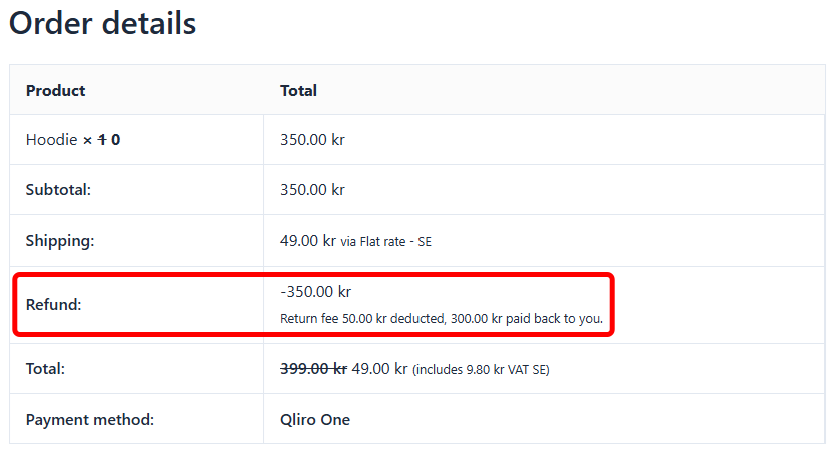
Please note that this is display only. The refund amount stored in WooCommerce and the information sent to Qliro are unchanged.
Partial capture
When an order is placed in WooCommerce and before it is set to Completed, you have the possibility to perform a partial capture, as an alternative to activating an entire order.
You can perform multiple partial captures on the same order.
- Navigate to WooCommerce → Orders and open the order you want to edit.
- In the Order items section, click the Partial capture button.

- Select the item(s) – or the quantity of each item – you want to capture, then click Create partial capture.

- A confirmation prompt will appear asking Are you sure you wish to process this capture?. Click OK to proceed.
- In the Order items section, a new column named Captured will appear, showing which items and quantities have been captured.

- In the Order notes, you will see entries confirming the process:
- The order has been requested to be partially captured with Qliro and is in process. Payment transaction id: XXXXXXX
- Followed by The order has been successfully captured by Qliro.

Please note:
- If you manually set an order with existing partial captures to Completed, Qliro will automatically process and capture payment for any remaining uncaptured items.
- If you create a partial capture for all remaining uncaptured items, the payment will be processed and captured in Qliro’s system, but you must manually set the order status to Completed in WooCommerce.
Disable and enable Order management
By default, order management is always enabled. It is however possible to turn off order synchronization between WooCommerce and Qliro via a setting in the Qliro order data metabox.
When disabled, you can modify the WooCommerce order in any way (e.g., change order status, modify order lines) without affecting the corresponding Qliro order.
When disabled any changes in either system will have to be done manually.
- Click Advanced in the Qliro order data metabox.
- Click the toggle switch to disable, or enable, order management.
- When changed, the setting autosaves and reloads the metabox.

Manual order synchronization
Changes made in WooCommerce can be manually synchronized with Qliro via the Sync order with Qliro button.

Please note that some payment methods might not allow you to increase the order value, for example direct payment options.
If you want to allow automatic syncing of WooCommerce orders to Qliro whenever an order is updated you can use the qliro_sync_order_on_update filter.